Pattern editor overview
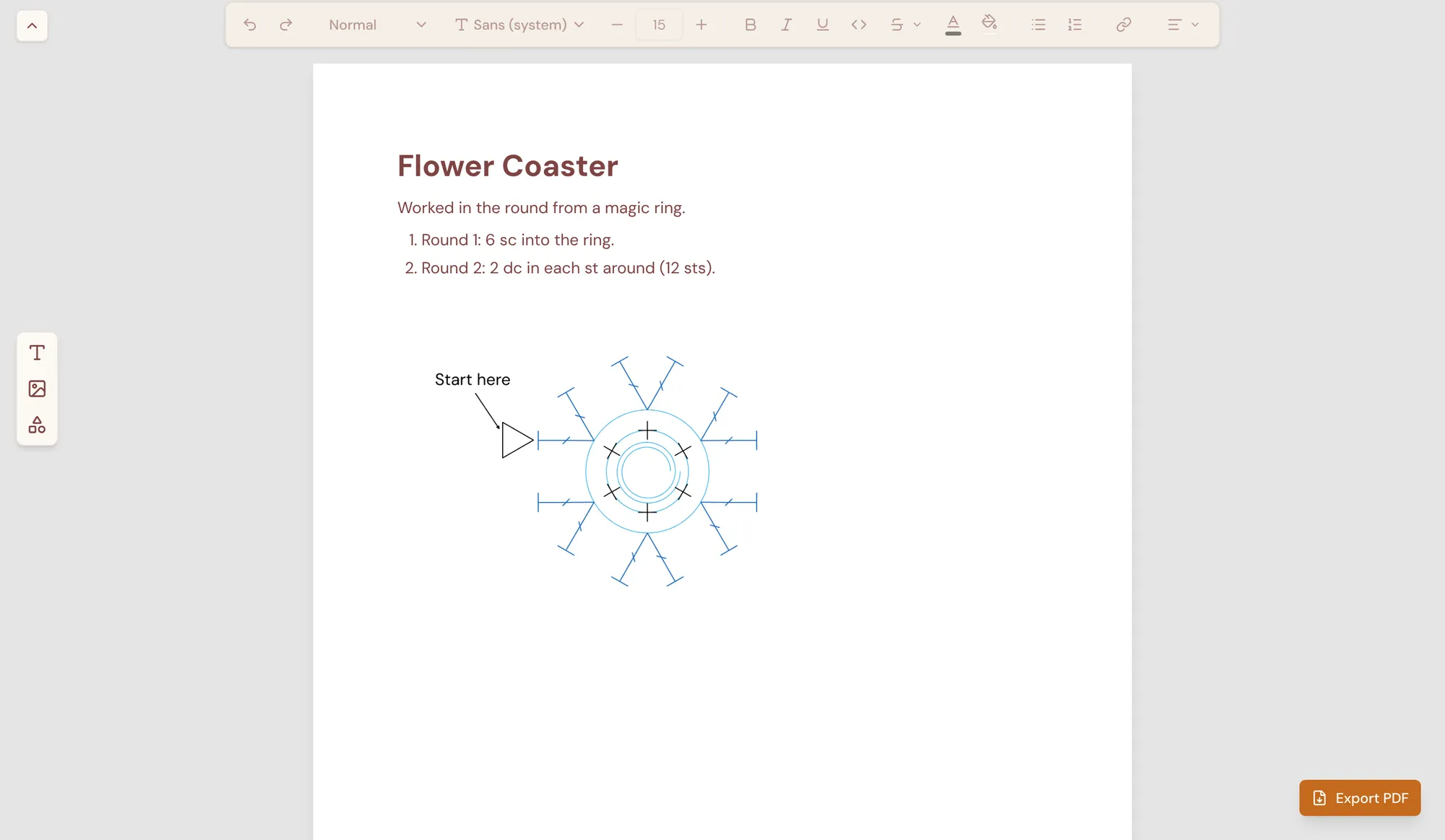
The pattern editor is where a project becomes a finished, printable pattern. You lay out a page with text boxes, photos, and the diagrams you made in the crochet and knit editors, then export it as a PDF.
This page covers creating a pattern and arranging things on the page. The rest of this section covers writing text and adding images and adding diagrams and exporting a PDF.
Creating a pattern
Section titled “Creating a pattern”- Sign in and go to Your workspace.
- Select New, then New pattern. StitchPress creates an empty pattern named Untitled and opens it.
Your patterns are listed under Patterns in Your workspace — select See all next to the Patterns heading to open My patterns. To rename or delete a pattern, use the ⋯ menu on its card. To rename it from inside the editor, click its name at the top left, type the new name, and press Enter.
The page
Section titled “The page”A pattern is a single US Letter page (8.5 × 11 in) that you build up from three kinds of boxes, added from the rail on the left:
- Add text box — a box you type your instructions into.
- Add image — a photo or picture from your computer.
- Add diagram — one of your crochet or knit diagrams.
New boxes appear near the top-left corner of the page, on top of anything already there. Arrange them however you like — boxes can overlap, and the page has no fixed columns or margins.
Arranging boxes
Section titled “Arranging boxes”- Select a box by clicking it. Click an empty part of the page to deselect.
- Move a selected box by dragging it.
- Resize a box by dragging the handle at its bottom-right corner. Images and diagrams keep their proportions inside the box.
- Edit text by double-clicking a text box (a new, empty one opens for typing with a single click). Press Esc to stop editing, and Esc again to deselect.
Right-click a box for more:
- Duplicate — add a copy just below and to the right.
- Bring to front — move the box on top of any boxes it overlaps.
- Delete — remove the box. You can also press Delete or Backspace while a box is selected.
- Refresh from diagram — for diagrams only; see Updating a diagram.
Saving
Section titled “Saving”Your pattern saves automatically a few seconds after each change, and again when you switch tabs or leave the page. The status next to Save shows when it was last saved; select Save or press Cmd/Ctrl + S to save right away.
Patterns are saved on your device first and then synced to your account, so they follow you to your other devices. A pattern is meant to be edited in one place at a time: if it was changed on another device while you had it open, the save status reads Changed on another device — reload to get the latest, and saving pauses until you reload the page.
Keyboard shortcuts
Section titled “Keyboard shortcuts”| Action | Shortcut |
|---|---|
| Save | Cmd/Ctrl + S |
| Delete the selected box | Delete or Backspace |
| Stop editing / deselect | Esc |
| Bold / Italic / Underline (while editing text) | Cmd/Ctrl + B / I / U |
| Undo / Redo (while editing text) | Cmd/Ctrl + Z / Cmd/Ctrl + Shift + Z |