Settings and preferences
StitchPress keeps your preferences in two places: the Settings page, for choices that apply across the whole app, and the settings menu (the gear) inside each editor, for options about the canvas you are working on.
Opening Settings
Section titled “Opening Settings”Select your account picture in the top-right corner and choose Settings. The Settings page has these sections:
- Appearance — theme, language, font size, and tray corners.
- Crochet — default stitch sizes and stroke for new crochet diagrams.
- Account — your name and email, and Manage account.
- Privacy & Cookies — which optional cookies StitchPress may use.
- Hotkeys — every keyboard shortcut, grouped by editor.
- Info — the app version and open-source licenses.
- Connect your AI — connect Claude or ChatGPT to StitchPress. See Connecting your AI.
Appearance
Section titled “Appearance”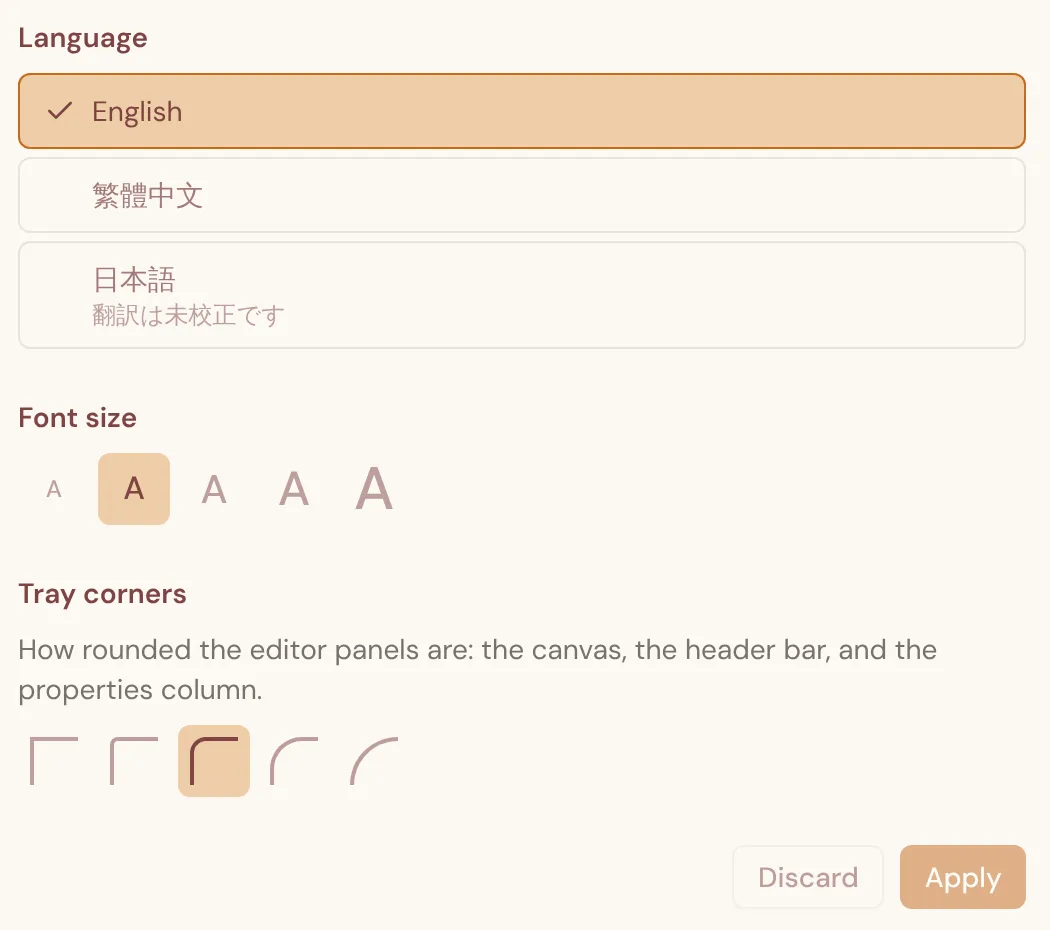
- Theme — Light, Dark, or System (follow your device’s setting). The theme changes the app’s panels and menus; the canvas keeps its own background color, which you set in each editor (see below).
- Language — English, 繁體中文 (Traditional Chinese), or 日本語 (Japanese).
- Font size — five sizes, from Small to Extra extra large, for the text throughout the app.
- Tray corners — how rounded the editor panels are, from Square to Extra round.
Changes preview as soon as you make them. Select Apply to keep them, or Discard to go back. Your theme and other appearance choices are saved to your account.
Crochet defaults
Section titled “Crochet defaults”The Crochet section sets the starting look of the stitches in new crochet diagrams. Diagrams you have already made keep their own settings.
- Default sizing — choose a Stitch type and adjust its default lengths, widths, and angles. Reset this stitch returns one stitch type to its original defaults, and Reset all returns every stitch type.
- Stroke — the default line width and line-end style for stitch symbols.
Select Apply to save your changes. To change these for a single diagram instead, see Sizing and shaping stitches.
Privacy & Cookies
Section titled “Privacy & Cookies”Choose which optional cookies StitchPress may use: Analytics, Session replay, and Error monitoring. Select Save choices to apply them — the page reloads. You can also review the full Privacy Policy from here.
Hotkeys
Section titled “Hotkeys”The Hotkeys section lists every keyboard shortcut currently in use, grouped into General, Crochet editor, Annotation layer, Knit editor, and Pattern editor. It is the most complete reference for shortcuts.
Editor settings menu
Section titled “Editor settings menu”Each editor has a gear button in its toolbar with options for the canvas. The exact list depends on the editor, but it includes:
- Input mode — Keyboard + Mouse or Trackpad, which changes how scrolling pans and zooms.
- Font size — the same setting as on the Settings page.
- Canvas grid — Off, Dots, or Lines behind your diagram.
- Canvas background — the color behind your diagram: Paper, White, Linen, Stone, Charcoal, Night, or a Custom color. This is saved on your device and is never included in exported images.
- Stitches used and Generate text — a stitch legend and written instructions for the diagram.
- Info — the app version.
The crochet editor’s menu has more options for snapping, overlays, and stitch strokes; see Canvas basics.