かぎ針エディターの概要
かぎ針エディターでは、細編みのシンプルな輪から、複雑な形や配色のデザインまで、かぎ針編みの編み図を一目ずつ組み立てられます。記号を手で描く代わりに、編み方を選んでキャンバスに置き、周りの編み目とつなげていきます。編み図は実際の編み地と同じように、1 段ずつ(または 1 周ずつ)育っていきます。
このページでは作業画面の各部と、編み図を作り始める方法を紹介します。このセクションの残りのページでは、キャンバス上の移動、編み目の追加、ガイドの使い方、編み目の配置と形の調整、色付け、玉編み、注釈、仕上がった編み図の共有について説明します。
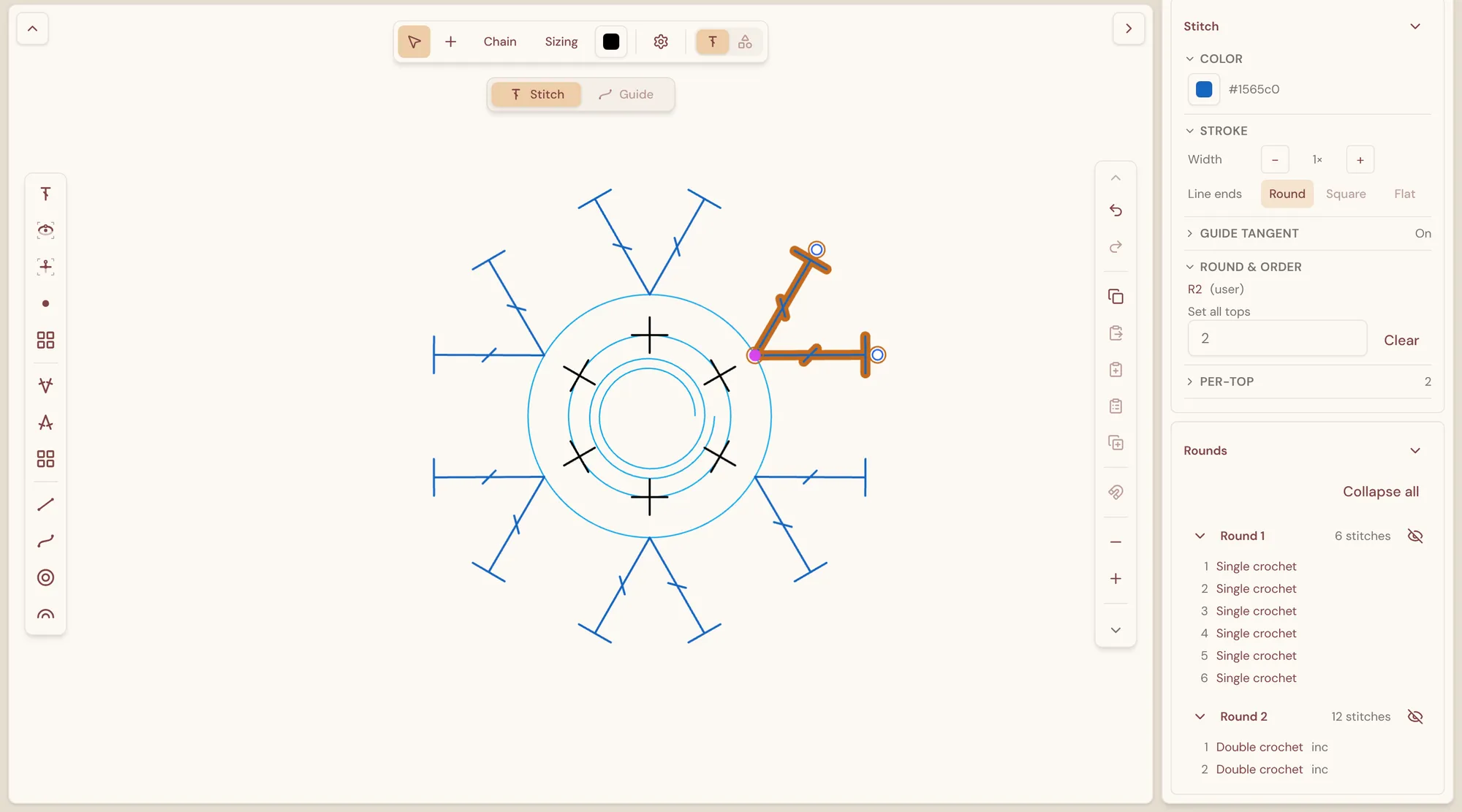
エディターはブラウザーのウィンドウ全体に広がり、中央のキャンバスに編み図が置かれ、その周囲にツールが配置されます。
- ヘッダー(上部) — 左側にアプリのメニュー(☰)、編み図の名前、保存 と保存状態があり、右側に 範囲を書き出し と 共有 があります。キャンバス左上の角にある山形のボタンで、ヘッダーの表示・非表示を切り替えます。
- ツールバー(キャンバスの上部) — モードのボタン(編集・配置・チェーン・サイズ変更)、目の色 のスウォッチ、設定 の歯車、ステッチ/注釈 のレイヤー切り替えが並びます。
- ステッチ/ガイド の切り替え(ツールバーの下) — 編み目を扱うか、編み目がスナップするガイドを扱うかを選びます。
- ステッチバー(左端) — キャンバスに置く編み目、増し目、減らし目が並びます。すべての編み方 と すべての増し目・減らし目 のボタンからライブラリー全体を開けます。ガイドツールがオンのときは、編み目の代わりにガイドが表示されます。
- キャンバス(中央) — 編み図が置かれる場所です。各編み目は標準的なかぎ針編みの記号として描かれます。編み目を選択すると、その ハンドル(ベースとトップを示す小さな丸)が表示されます。
- 操作ツールバー(キャンバスの右端) — 元に戻す、やり直す、コピーと貼り付け、グリッドにスナップ、短くする と 長くする、削除、編み目をリンク、方向を揃える、グループ パネルのボタンが並びます。
- プロパティ列(右側) — 選択中のものの詳細(色、線、段と順序、リンクなど)を表示する インスペクター と、編み目を段ごとにまとめて一覧表示する 段 パネルがあります。列の左端をドラッグすると幅を変えられます。キャンバス右上の角にある山形のボタン(または Cmd/Ctrl + \)で、列の表示・非表示を切り替えます。この列の一番上には、アカウントの画像が表示されます。
スマートフォンほどの小さな画面では、レイアウトが簡略化されます。名前と保存状態はキャンバスの上に浮かんで表示され、範囲を書き出し と 共有 はツールバーに移り、各パネルは画面の下からシートとして開きます。
編み図を作成する
Section titled “編み図を作成する”- サインインして ワークスペース を開きます。
- 新規作成 を選び、続いて 新規かぎ針編み を選びます。StitchPress が 無題 という名前の空の編み図を作成し、エディターで開きます。
- 編み目を追加していきます。編み目を追加するをご覧ください。
編み図の名前を変えるには、ヘッダーの名前をクリックし、新しい名前を入力して Enter を押します。
作業内容は自動的に保存されます。保存 の横の表示で現在の状態がわかります。たとえば Synced(同期済み)や、接続が切れているときは Offline — saved on this device(オフライン — この端末に保存済み)と表示されます。すぐに保存したいときは 保存 を選ぶか、Cmd/Ctrl + S を押します。同じ編み図を別のタブや別の端末で開いている場合は、変更が両方に反映されます。
編み図を開く
Section titled “編み図を開く”これまでに作成したかぎ針編み図は、すべてワークスペースの かぎ針編み の下と、アプリのメニューにある かぎ針編み のギャラリーに表示されます。選択すると、閉じたときのままの状態でエディターに再び開きます。編み図の名前の変更・共有・削除を行うには、カード上の ⋯ 操作メニューを使います。